It doesn't have to be two separate jobs. Here's what's actually involved in publishing to both platforms at once, where the real friction comes from, and the practical ways to handle it — including options that don't involve any particular tool at all.
Why "just post it twice" doesn't stay simple
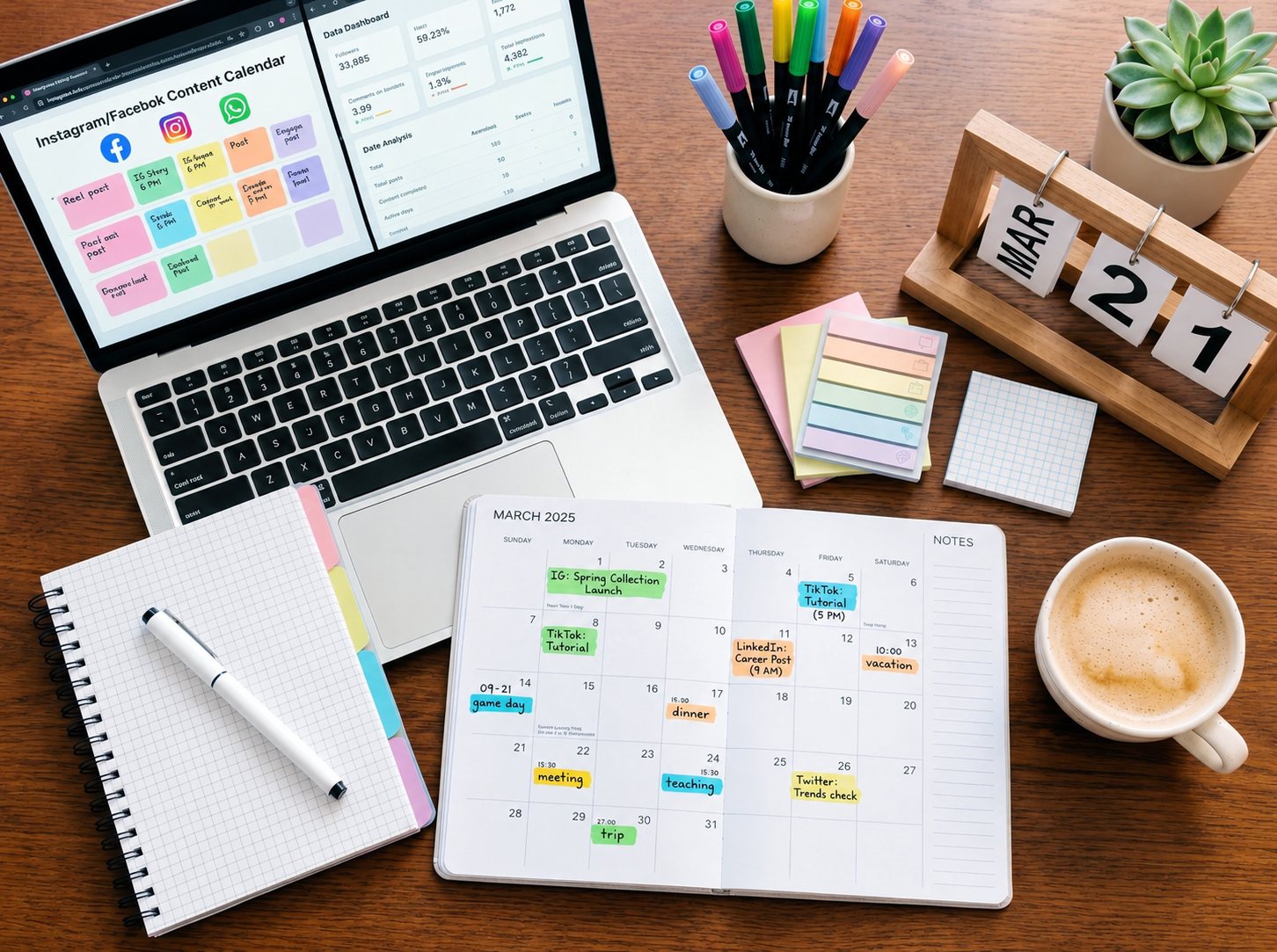
On the surface, re-posting the same content to Instagram after posting it to Facebook (or the other way around) sounds like it should take thirty seconds. In practice, a few things tend to make it slower than it looks:
- You're switching apps or browser tabs, which breaks your focus each time.
- Instagram and Facebook don't always handle the same image or caption identically (more on this below), so "the same post" sometimes needs a small adjustment, not a pure copy-paste.
- If you post at different times for each platform — which a lot of people do without really deciding to — you end up doing the whole process twice, at two different moments in your day, instead of once.
None of this is a dramatic problem on its own. It's the repetition, several times a week, that adds up.
What actually changes between a Facebook post and an Instagram post
Before picking a workflow, it helps to know what's actually different between the two platforms, so you're not guessing:
- Aspect ratio and cropping. Facebook tends to be more forgiving about image shape; Instagram's feed and grid are pickier about square or portrait crops, and a photo that looks fine on Facebook can end up cropped awkwardly on Instagram.
- Hashtags. Hashtags are commonly used to support discovery on Instagram. On Facebook, they're mostly inert — they don't hurt, but they don't do the same work. A caption written with Instagram-style hashtags can look a little out of place as a plain Facebook post.
- Reels vs. regular video. Instagram leans heavily on Reels for video, which need vertical (9:16) framing; Facebook will take the same video as a regular video post, but the framing and pacing that work for a Reel aren't always what you'd choose for a Facebook feed video.
- Captions and tone. Neither platform enforces a strict style, but audiences on each tend to expect a slightly different register — this is a judgment call, not a technical limit.
These are common patterns from using both platforms, not official rules from Meta — worth watching for, but always worth double-checking against how your own post actually looks before you publish.
Your three practical options
There are really three ways people handle this, and it's worth being honest about what each one actually involves:
1. Manual, one platform at a time
Post to Facebook, then open Instagram and do it again. No new tool to learn, full control over every detail — but you're doing the work twice, every time, and it's easy to let Instagram (or Facebook) lag behind because the second pass gets skipped on a busy day.
2. Meta's own native tools
Meta's Business Suite lets you create a post, check off Facebook and/or Instagram as destinations in the same composer, preview how it'll look on each, and publish or schedule it — all without leaving that one screen. This is a real, no-cost option if you only need basic cross-posting, and it covers Stories as well as standard feed posts. It has a couple of known rough edges worth knowing about going in: Instagram Reels currently can't be saved as drafts (Facebook Reels can), and Reels need vertical (9:16) video, so a horizontal video made for Facebook may not translate well. Meta changes its own tools from time to time, so it's worth a quick look at Business Suite itself to confirm current behavior before relying on it for anything Reels-specific. If your posting is mostly simple feed content, this native option is genuinely worth trying before reaching for anything else.
3. A third-party scheduler
Tools built specifically around scheduling (TwinClouds included) add a calendar view across both platforms, let you prepare several posts ahead of time instead of one at a time, and in some cases offer help actually writing the content in the first place. The trade-off is that it's another account and another workflow to learn — worth it once the volume of posting makes the native option feel limiting, not necessarily before that.
There's no universally "right" choice here — it depends on how much you're posting and how much that repetition is actually costing you.
A simple workflow: prepare once, publish to both
Whichever option you use, the underlying workflow that avoids doing things twice looks the same:
- Write the caption once, in whichever app or tool you're using to prepare it.
- Pick or crop the image or video with both platforms in mind — a square or portrait crop travels better to both than a strict landscape shot.
- Decide the posting time once, rather than defaulting to "whenever I get to the second one."
- Publish to both at the same time — either by choosing both destinations in one flow (Business Suite or a scheduler), or by publishing to the first platform and immediately handling the second while the content is still in front of you, rather than coming back to it later.
The goal isn't zero adjustments between platforms — it's doing the adjusting once, deliberately, instead of recreating the whole post from scratch twice.
When captions or images need small platform-specific tweaks
A few quick, low-effort adjustments are usually enough:
- Drop a short hashtag group onto the Instagram version if you're not already using one; leave the Facebook version plain.
- If your image or video is landscape, check how it crops on Instagram before publishing — a quick recrop takes seconds and avoids an awkward square-cropped face or logo.
- If you're posting a video as a Reel on Instagram, consider whether it also makes sense as a regular video post on Facebook, rather than assuming the same file works equally well as both by default.
These are genuinely minor — the point is just not to assume "identical" automatically means "appropriate" on both platforms.
Where a scheduler earns its place
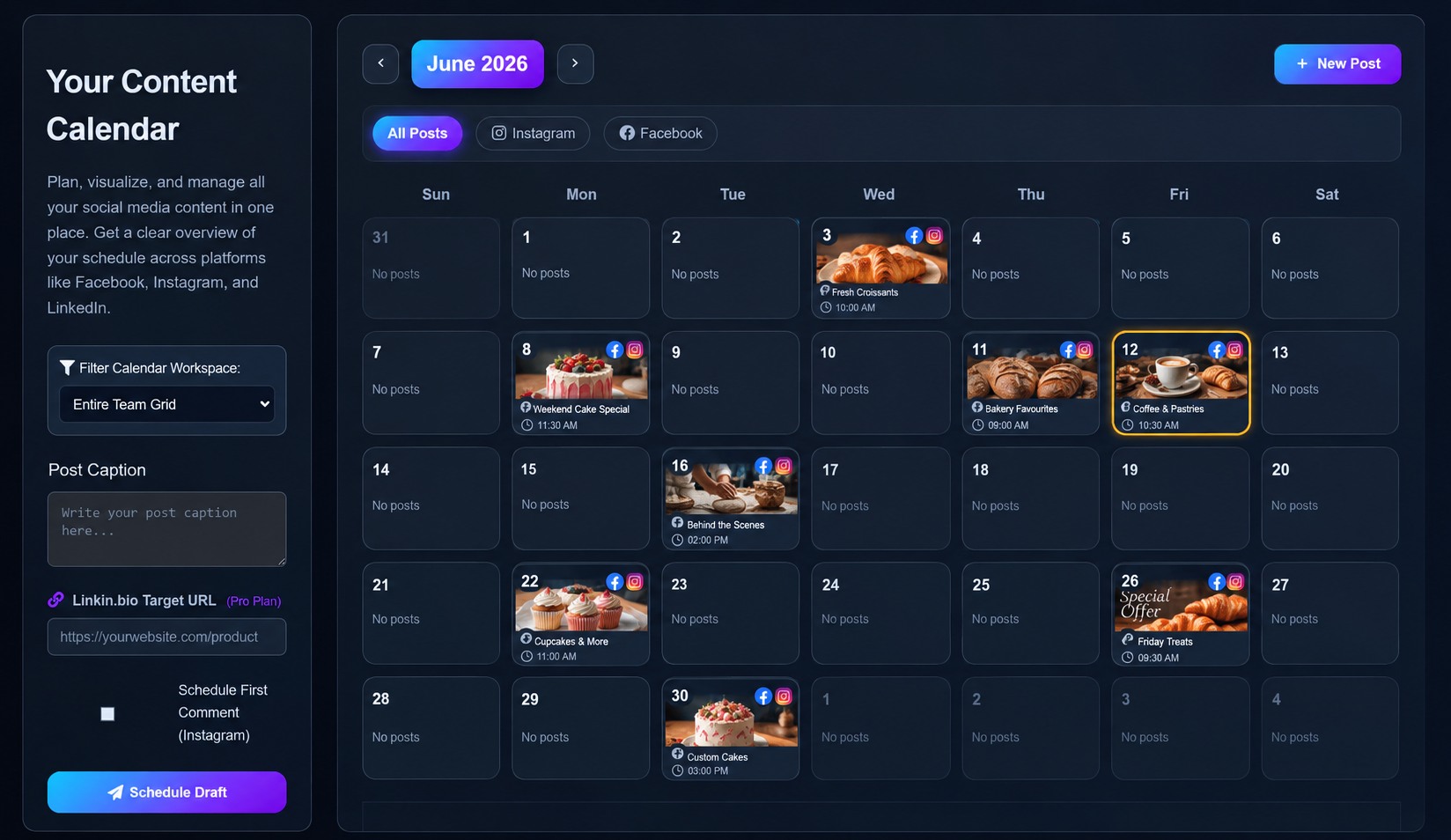
If you're posting a few times a week and the manual or native-tool approach already feels manageable, there's no need to add another tool just because one exists. A scheduler tends to earn its place once you're regularly preparing more than a post or two at a time, want to plan a week or a month ahead rather than posting in the moment, or want help actually drafting the content — not just publishing it.
From content planning to publishing and performance
TwinClouds brings together tools for planning, creating, organizing, publishing and reviewing your Facebook and Instagram marketing workflow.
- 1Brand Kit
- 2AI Studio
- 3Templates & Generate Similar
- 4Product Photos
- 5Carousel Generator
- 6Campaigns
- 7Asset Library
- 8Scheduler
- 9Publishing
- 10Analytics
Not every post needs all ten steps — this shows the full range of what's available, not a required sequence for every post.
TwinClouds is one option built around exactly that overlap: writing and scheduling Facebook and Instagram content from one calendar, so the "prepare once" step above and the "publish to both" step happen in the same place, without switching apps for either half. It also includes a Unified Inbox, so when a Facebook or Instagram message comes in, you can see and reply to it without leaving the same workflow, and AI-assisted content creation, for days when you need a starting point for a caption or visual rather than a blank page.
This isn't the only way to solve the problem — the native Meta tools and a manual routine both remain legitimate choices, depending on how much you're posting and how much time it's actually taking you.
Frequently asked questions
Yes. Meta's Business Suite lets you choose both platforms as destinations for one post and publish or schedule it from a single screen, at no extra cost. It's a reasonable starting point for straightforward feed posts — it's always worth confirming the current steps directly in Business Suite, since Meta updates its own tools from time to time.
Usually, with a small caveat: Instagram tends to be pickier about crop than Facebook, so a photo that looks right on Facebook can crop awkwardly on Instagram's grid. A quick check before publishing avoids this.
Not necessarily two different captions — but a caption written purely for Instagram's hashtag-driven discovery can read a little oddly as a plain Facebook post, and vice versa. A light touch-up, not a rewrite, usually covers it.
Roughly: once you're posting often enough, or planning far enough ahead, that preparing and publishing one post at a time starts to feel repetitive rather than quick. Below that point, the native Meta tools or a manual routine are often enough on their own.
Not currently — TwinClouds' scheduling, publishing, and inbox features are built specifically for Facebook and Instagram.